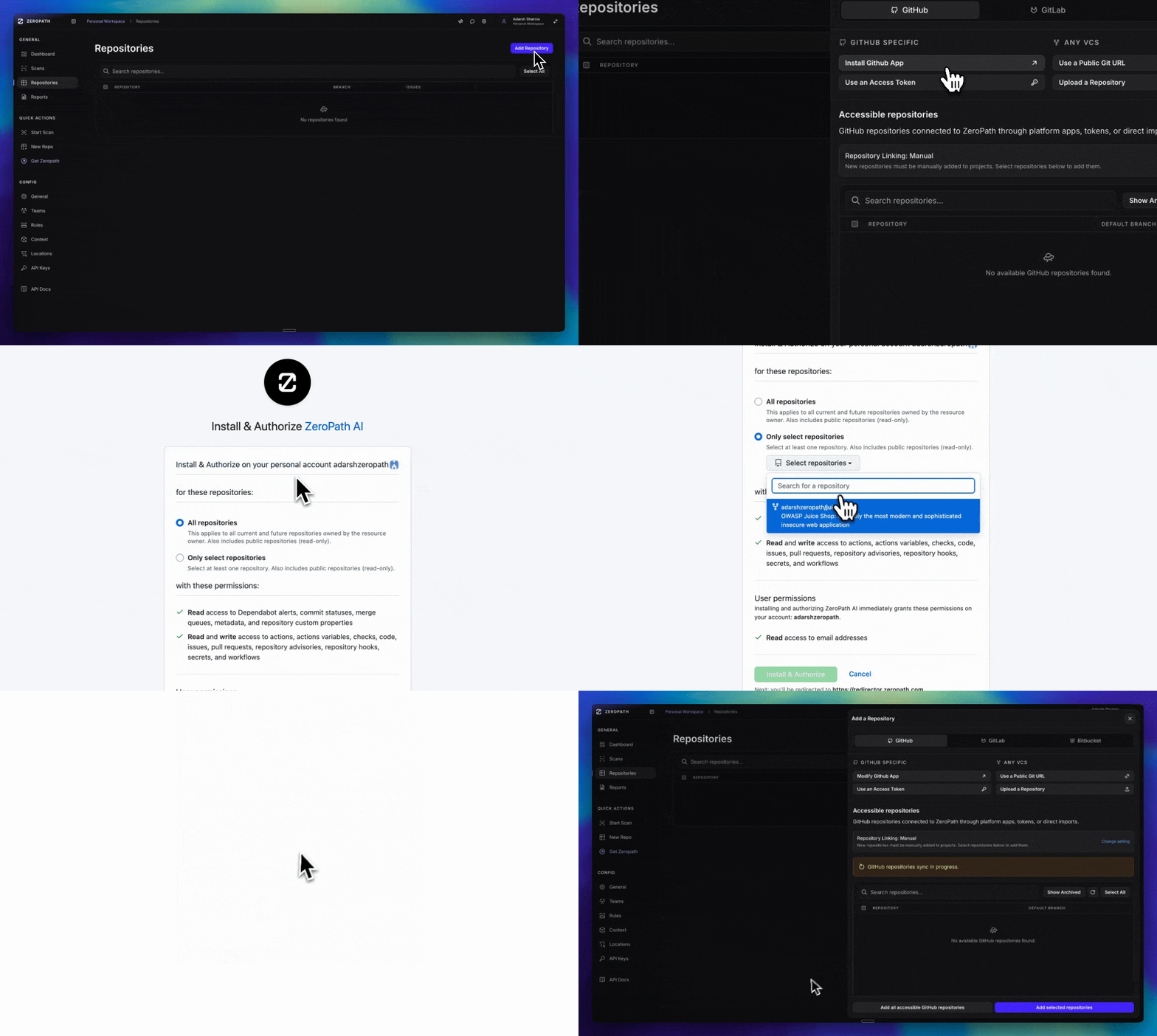
Click “Install GitHub App” (GitHub App tab should be pre-selected)
3
Complete GitHub Flow
On GitHub’s side:
Select your organization
Choose repositories to grant access to
Approve the permission set
If you are not already logged in to ZeroPath, you will be redirected to the login page first. After logging in, the installation will resume automatically.
4
Wait for Sync
You’ll be redirected back to ZeroPath. Wait for repositories to appear under “Accessible repositories” (syncing indicator will show if still processing)
5
Add Repositories
Select which repositories to add to ZeroPath, or click “Add All”
Enable “Auto Add” to automatically add new repositories when you grant access in the future
Connect repositories hosted on your own GitHub Enterprise Server (GHES) instance.
Enter your GHES instance hostname (e.g., github.example.com). If your instance uses a
self-signed or internal CA certificate, upload the CA bundle so ZeroPath can establish a
trusted connection.Click Create App to begin the GitHub App Manifest flow. You will be redirected to your
GHES instance to confirm app creation.
4
Install the App
After the app is created, you are automatically redirected to your GHES instance’s app
installation page. Select the organization whose repositories you want to scan and approve
the permissions.
If you do not have permission to install the app directly, your request will be sent to an
organization owner for approval. Repositories will appear once the owner approves the
installation.
5
Wait for Sync
You will be redirected back to ZeroPath. Your GHES repositories will begin syncing and
appear under “Accessible repositories” once ready.
6
Add Repositories
Select which repositories to add to ZeroPath, or click “Add All”.
Connect GitHub repositories using a personal access token for scanning only.
Token-based connections have limited features: auto PRs, PR checks, and other GitHub flows are not available. Use GitHub App for full functionality.
To rotate a token without interrupting scans, open the connected repository in ZeroPath, go to
Settings, and select Update Token under GitLab Installation Token. Updating the
installation keeps every attached repository connected.If the GitLab installation was already deleted, create a replacement from Add Repositories →
GitLab with access to the same projects. ZeroPath preserves the disconnected repositories and
automatically reconnects them when the replacement installation syncs the matching GitLab
instance and project. Existing scan history, findings, and repository settings are retained.
A repository remains disconnected if the replacement token cannot access that project or if it
points to a different GitLab instance.
For Bitbucket Cloud, create a workspace access token. For Bitbucket Data Center, create a
user HTTP access token to make every project visible to that user available through one
ZeroPath connection, or create a project token to keep the connection scoped to one project.Grant the permissions needed for the features you use:
Repository: Read, Write
Pull Requests: Read, Write
Project administration / Webhooks: required for automatic pull-request webhooks
Click the Azure DevOps tab, then click Setup Azure DevOps.
3
Enter Your Organization URL
Enter your Azure DevOps Services organization URL, such as
https://dev.azure.com/my-organization.
4
Authorize ZeroPath
Continue through the Microsoft consent screen. ZeroPath stores encrypted credential material
and uses it to list repositories, create service hooks, scan pull requests, and open patch
pull requests.
5
Add Repositories
After the OAuth callback, repositories appear under Accessible repositories. Select
repositories to add, or click Add all accessible Azure DevOps repositories.
In Azure DevOps Services, create a PAT with repository read/write access, pull request
thread read/write access, status/build access, and service hook management access.
2
Use the PAT Setup Form
In the Azure DevOps setup dialog, switch to Personal Access Token, enter your
organization URL and PAT, then click Connect with PAT.
3
Add Repositories
Once ZeroPath validates the token, import individual repositories, selected batches, or all
accessible repositories.
Azure DevOps Integration Guide
See the full Azure DevOps setup, scope, and troubleshooting guide.
Scan any publicly accessible Git repository by providing its URL.
Open a repository and select Settings. Use General for the default branch, Full scans for scanner modules and confidence, and Pull requests for automatic PR checks. Set up your scan preferences:
Branch Selection: Choose which branch to monitor and ensure they exist
PR Scanning: Optionally, disable automatic PR Checks (enabled by default)
Scanner Settings: By default, ZeroPath is configured for SAST, SCA, IaC, and Secrets by default, with a low confidence permissiveness setting.